
With Webpush, you send short messages directly in the browser to visitors who have said yes to them. This includes visitors who have never given you their email.
In this guide, you create the Webpush integration in Heyloyalty and install it on your website, so your visitors can sign up.
What value does Webpush give you?
Webpush has its own permission. A visitor can say yes to webpush without signing up for your newsletter, and you can still reach them after they have left your website.
When a visitor says yes, they are added to the list you choose in the integration. If the visitor is already a contact on the list and Heyloyalty knows them from your tracking, the existing contact gets webpush. Otherwise, a new contact is created that only has webpush.
You reach them with campaigns and automations, for example when ticket sales for next season open, or when new products arrive in your webshop.
Step 1: Create the Webpush integration
Go to Integrations → List integrations. Find Webpush, and click Setup integration. If you already have a Webpush integration, the button says Edit integration.
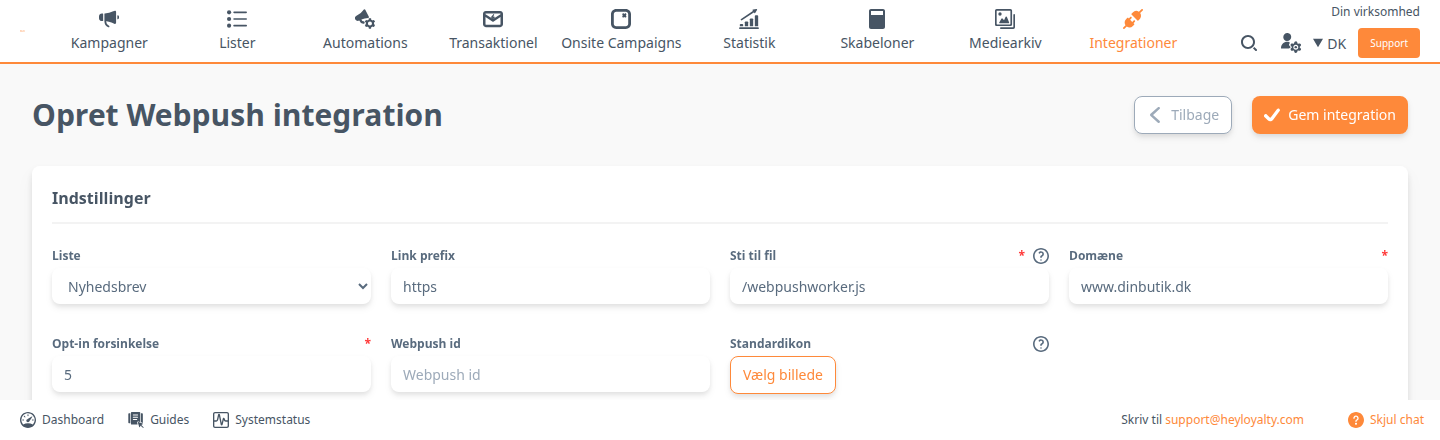
You are now on Webpushoverview. Click Create new Webpush, and fill in the settings:
- List: The list that visitors are added to when they say yes to webpush.
- Link prefix: Is always set to https and can't be changed.
- route for workerfile: The path to the worker file on your website, for example
/webpushworker.js. The file must be in the root of your website, so the path is a slash followed by the file name. You get the worker file in step 2. - Domain: Your website's domain, for example
www.yourshop.com. - Opt-in delay: How many seconds a visitor must be on your website before they are asked whether they want to receive webpush. Many use 5 seconds.
- Webpush id: Filled in automatically when you save, and can't be changed.
- Standardicon: Click Choose image, and choose an image from the media archive, for example your logo. The icon is shown in all Webpush campaigns and automations that use the list. You can choose a different icon when you design the individual message. The image should be 125 × 125 px.
route for workerfile, Domain and Opt-in delay are required. Click Save integration. The integration is now shown on Webpushoverview with its Webpush id.
Step 2: Put the worker file on your website
The worker file lets the browser show your messages, even when the visitor isn't on your website.
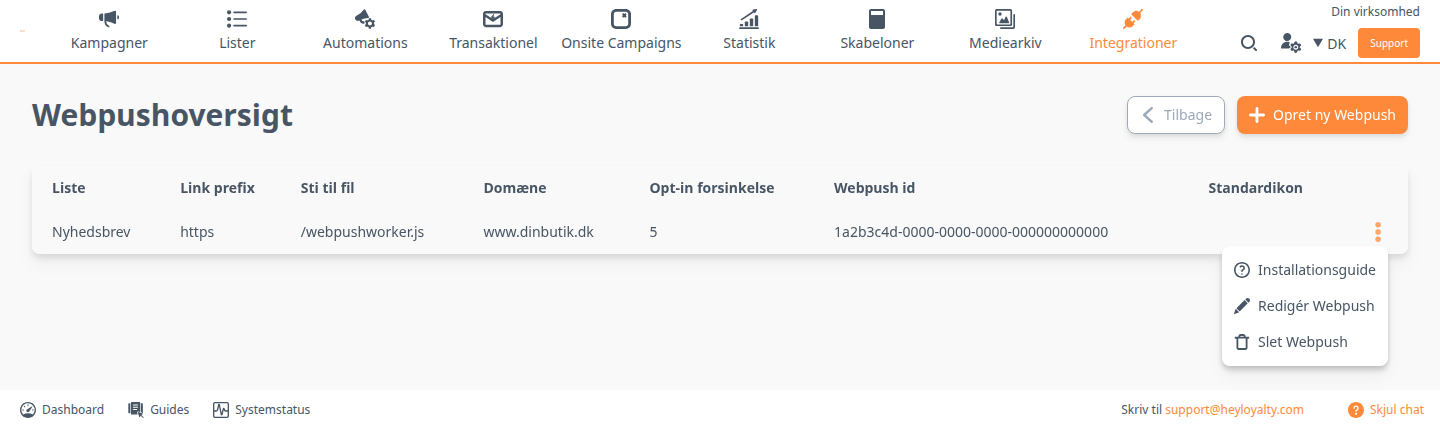
On Webpushoverview, click ⋮ next to the integration and choose Installation wizard.
- Click Open worker file under Worker installation. The file opens in a new tab.
- Save the file on your computer, for example by right-clicking and choosing Save as. Give it exactly the name you entered in route for workerfile, for example
webpushworker.js. Check that the file ends in.jsand not in.txt. - Put the file in the root of your website, so it is at, for example,
www.yourshop.com/webpushworker.js. You usually do this with an FTP program such as FileZilla or in your webshop's file manager. Ask your web developer if you don't have access yourself. - Open the address in your browser to check that the file is in the right place.
Step 3: Insert the script on your website
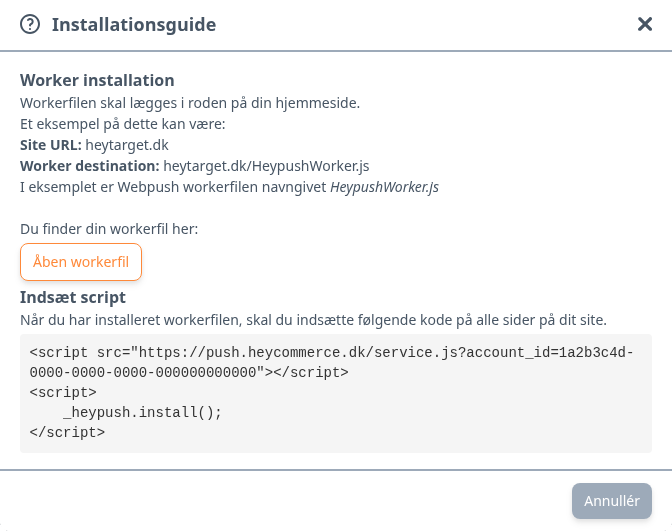
Go back to the Installation wizard. Copy the code under Insert script, and paste it on all pages of your website, for example in the template or footer that all pages use. The code looks like this, with your own Webpush id:
<script src="https://push.heycommerce.dk/service.js?account_id=<your Webpush id>"></script>
<script>
    _heypush.install();
</script>
Always copy the code from the installation wizard, so your own Webpush id is included.
Once the script is in place, your visitors are asked whether they want to receive webpush after they have been on your website for the number of seconds you chose in Opt-in delay.
You are ready to send webpush
You have now created the Webpush integration, put the worker file on your website and inserted the script. From now on, visitors who say yes to webpush are added to your list.
The next step is to give them a reason to click. A guest who said yes on your theatre's website can be told when ticket sales for the next performance open. A customer in your webshop can be told when new products arrive. Read how to create a campaign with Webpush and create an automation with Webpush.